
Recording cues
You can record audio and MIDI from respective inputs into trigger slots to play them back. Here is the workflow.
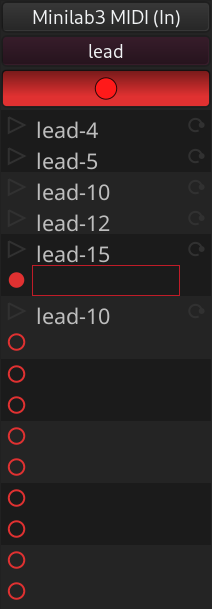
- On the Cue page, Click on the record button at the top of the track you want to record to. The play buttons for every slot turns into a record enable button.
- Select a trigger slot
- Click the recording buttong to the left of the selected trigger slot to enable recording
- Start the transport (typically by clicking the Play button in the transport toolbar or pressing Space)
By default, the recording will be 1 bar long; you can change this in the clip properties area, using the length dropdown selector above the pianoroll:
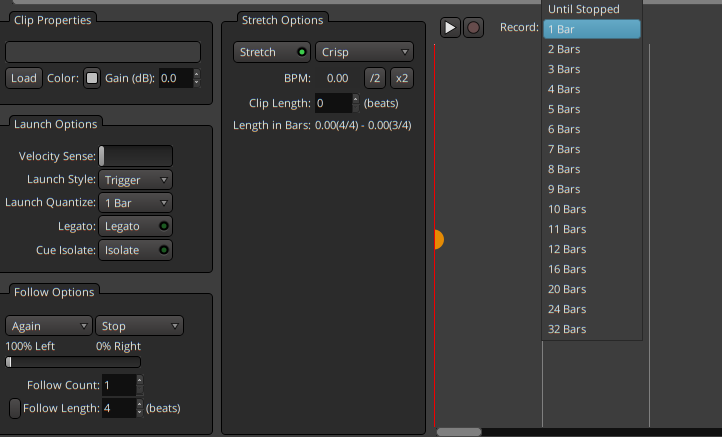
If you select "Until Stopped", then recording will continue until you explicitly stop the recording, most typically by pressing the space bar on your computer.
Ardour will count down (the number of beats depends on launch quantization and position of the playhead) and start recording.
As soon as the playhead reaches the end of the defined recording length, Ardour will stop recording and start playing back the clip you've just recorded.
Note that if you use the rec-enable button just to the left of the recording length selector, it will also enable the track for cue recording if it is not already enabled.