Applying effects to regions separately
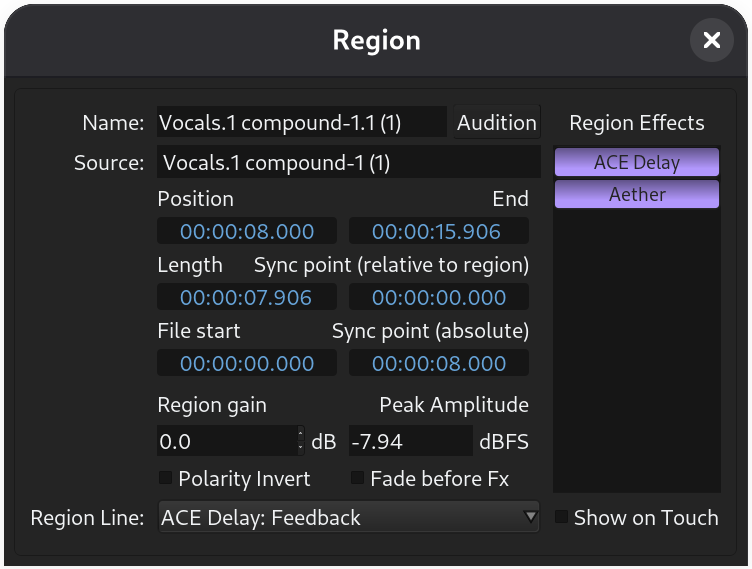
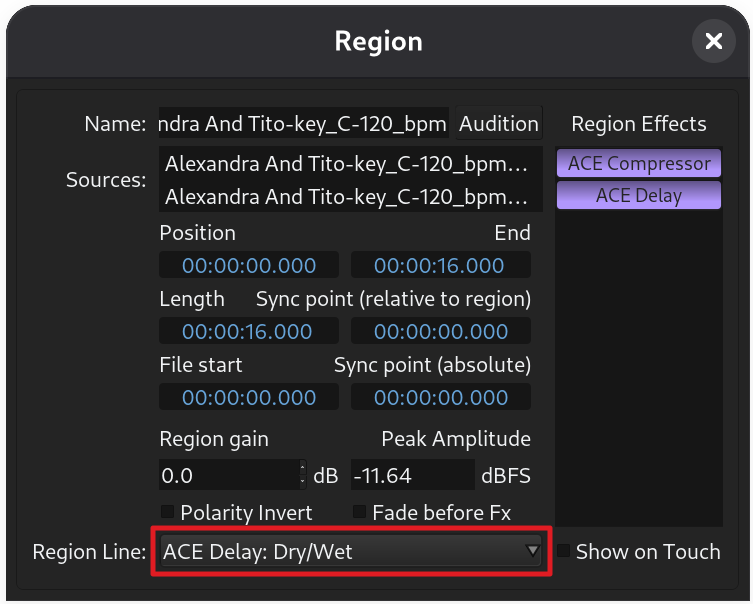
With Ardour, it's possible to apply effects to separate regions rather than entire tracks. The effect and its automation remain with the region, even when it is moved around on the timeline.
Applying effects directly to regions on the timeline is convenient for many workflows. The given effect is rendered into memory and does not add any additional DSP load during playback.
The controls for region FX are available in the bottom pane when it's enabled and the region properties dialog (Region > Properties in the menu).
Adding a region effect
To add a new region effect, right-click in the processor box of the Region Properties dialog or bottom pane, then select an effect from the list or use Plugin Selector.
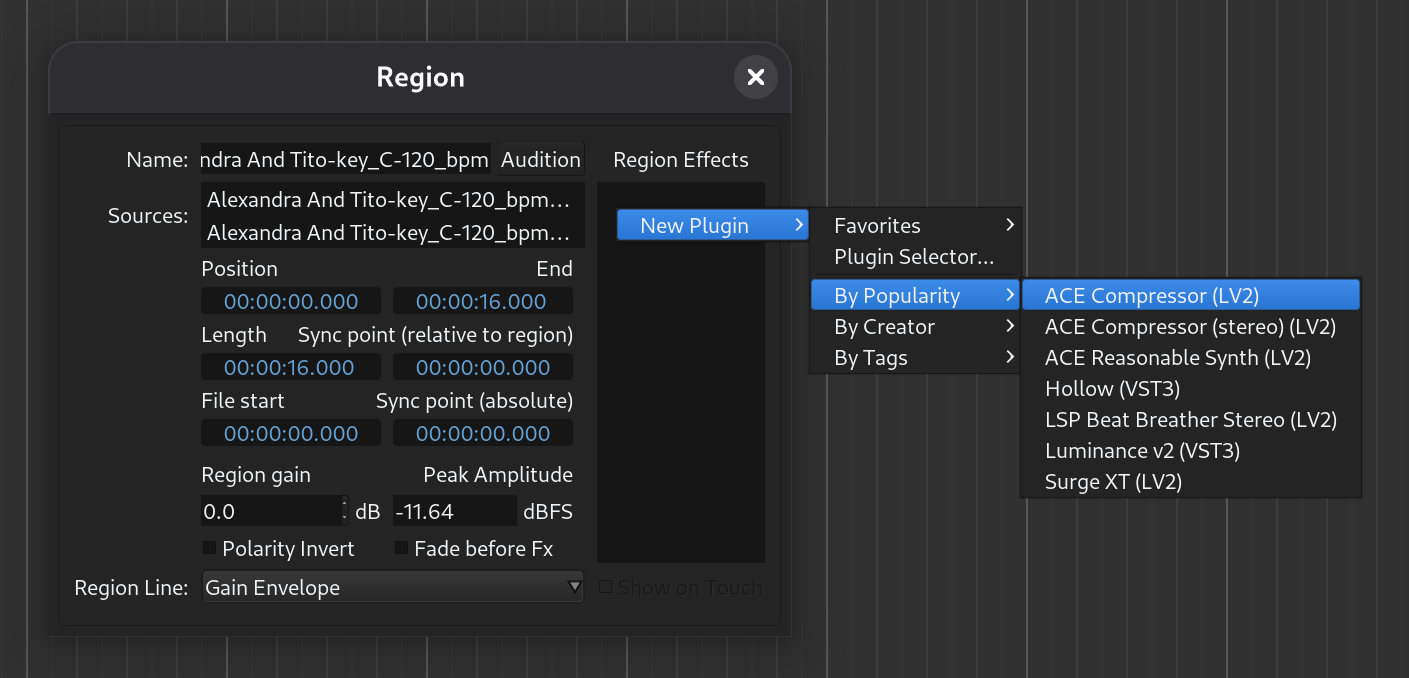
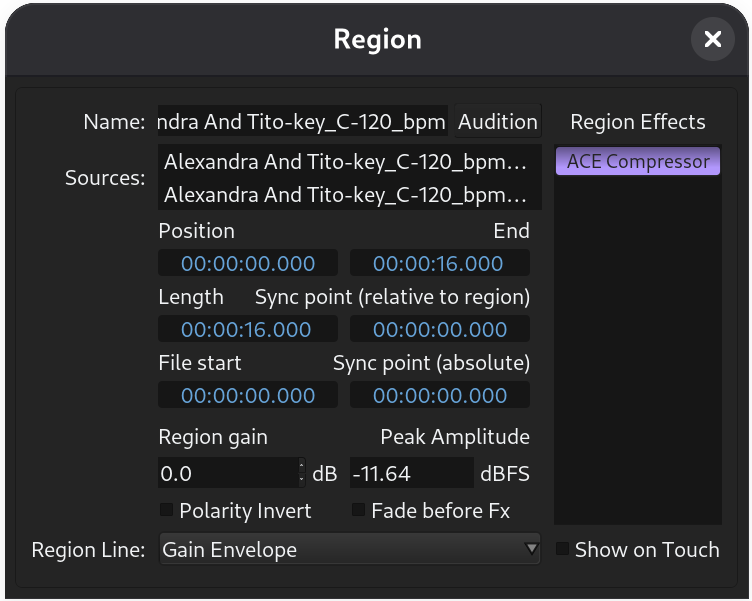
The selected effect will be added to the processor box:
Editing a region effect
To edit the effect parameters, double-click its name in the processor box.
Reordering region effects
To reorder region effects, pick and effect in the processor box, then drag and drop it to the desired position.
Removing a region effect
To remove a region effect, right-click on its name in the processor box and select Delete in the menu.
Selecting region line
Ardour defaults to displaying the gain automation line in the Internal Edit mode. To choose an effect parameter instead, click on the Region Line drop-down list in the Region Properties dialog, select an effect, then a parameter.