
Record/Punch Options
Punch controls
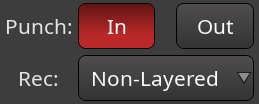
The punch controls available in the main toolbar, work in conjunction with the punch clocks, only visible while in Editor Mode.
The In and Out buttons relate to the Punch range, and allow to use only one of the two punch boundaries, or both:
| In only | Records from the In marker on, without an end boundary |
|---|---|
| Out only | Records until the Out marker, without a beginning boundary |
| In and Out | Records only between the In and Out markers |
Recording mode
The recording mode affects how the tracks behave when overdubbing:
| Layered | New regions will be layered on top of existing ones. Only the top layer will be played. This is the recommended mode for most workflows. |
|---|---|
| Non-Layered | The existing regions are trimmed so that there are no overlaps. This does not affect the previously recorded audio data, and trimmed regions can be expanded again at will. Non-layered mode can be very useful for spoken word material, especially in combination with push/pull trimming. |
| Snd on Snd | New regions will be layered on top of existing ones and made transparent. This means all overlapping layers will be played at the same time. This mode is typically recommended for progressively building up MIDI tracks, e.g. a drum track, in each individual take. |
See Track Modes for more information.