
Other Toolbar Items
Plugin Delay Compensation
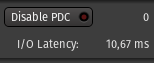
This section shows information about the latency compensation Ardour sets to align all signals in time whatever their route (and processing applied).
The only button Disable PDC allows to enable/disable the Plugin Delay Compensation. Enabling it will make all signal perfectly aligned, while disabling it will reduce the delay, at the expense of slightly misaligned signals for tracks that have plugins introducing latency.
The two infos are:
- the maxium reported latency by a plugin chain (worst route latency)
- the I/O latency, i.e. how long does it take for a signal arriving at any physical input to be played back again.
The Cue Options
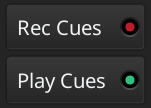
Those two buttons control how Ardour deals with cue markers:
- Rec Cues: when enabled, every time you click on a cue in the Cue window during playback, Ardour will insert the correspinding cue marker at the current playhead position. Only use it when programming cue sequences to align with timeline content.
- Play Cues: when enabled, Ardour will play the corresponding cue every time the playhead passes its cue marker. This option is useful to be on by default.
The Master Level Meter

The global meter shows the levels of the master's output. Its the same meter that sits in the Master's Mixer strip, and also shows a peak indicator, that turns red when any level exceeds 0dB. It can be reset by a Left click.
The Monitor Section Info

This section is only useful and active if the session has a Monitor section. The three buttons are exactly linked to their counterparts in the Monitor slice of the mixer, but as they sit in the toolbar, remain visible even in Editor mode.
The three buttons are:
- Mono: sums all of the paths to a single mono signal and applies it to all Monitor Section outputs.
- Dim All: Reduces overall monitor level by the amount set with the Dim level control.
- Mute All: Mutes all monitoring.
The Status Indicators

The Status buttons show the current session state:
| Solo | Blinks when one or more tracks are being soloed, see Muting and Soloing. Clicking this button disables any active explicit and implicit solo on all tracks and busses. |
|---|---|
| Audition | Blinks when some audio is auditioned, e.g. by using the import dialog, or using the Audition context menu in the Regions List. Clicking this button stops the auditioning. |
| Feedback | Blinks when Ardour detects a feedback loop, which happens when the output of an audio signal chain is plugged back to its input. This is probably not wanted and can be dangerous for the hardware and the listener. |
Script/Shortcut buttons

The buttons in between the Mode Selector and the Master Level Meter are script or shortcuts buttons, which are user-definable buttons to attach any session lua-script to, or any action shortcut (e.g. for tasks that are used often and buried deep inside nested menus).
The number of buttons (precisely, the number of columns of two buttons) can be set in the Preferences.
Left-clicking an affected button launches the script or shortcut, while right-clicking or clicking an unaffected button allows change the script/shortcut the button should execute.
Pane controls
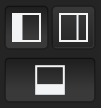
These buttons control the visibility of panes in Ardour windows:
- The right sidebar (Editor list) and the bottom pane in the Editor window
- The bottom pane and the right sidebar (Cue list) in the Cue window
- The left sidebar in the Mixer window
The Recorder window currrently has no panes to control.
The Mode Selector

The Mode Selector allows switching between the Editor, Mixer, Cue, and Recording windows. If a window is detached, the corresponding button is lit. Clicking the button switches the detached window visibility.