
Pianoroll Window
Pianoroll windows are a conventional user interface for editing MIDI data. It's possible to open several regions for editing in dedicated pianoroll windows at a time:
- Select a MIDI region on the timeline.
- Right-click, then select {region name} > Edit in a separate window…
The user interface largely resembles that of in-place editing in the main window on the timeline.
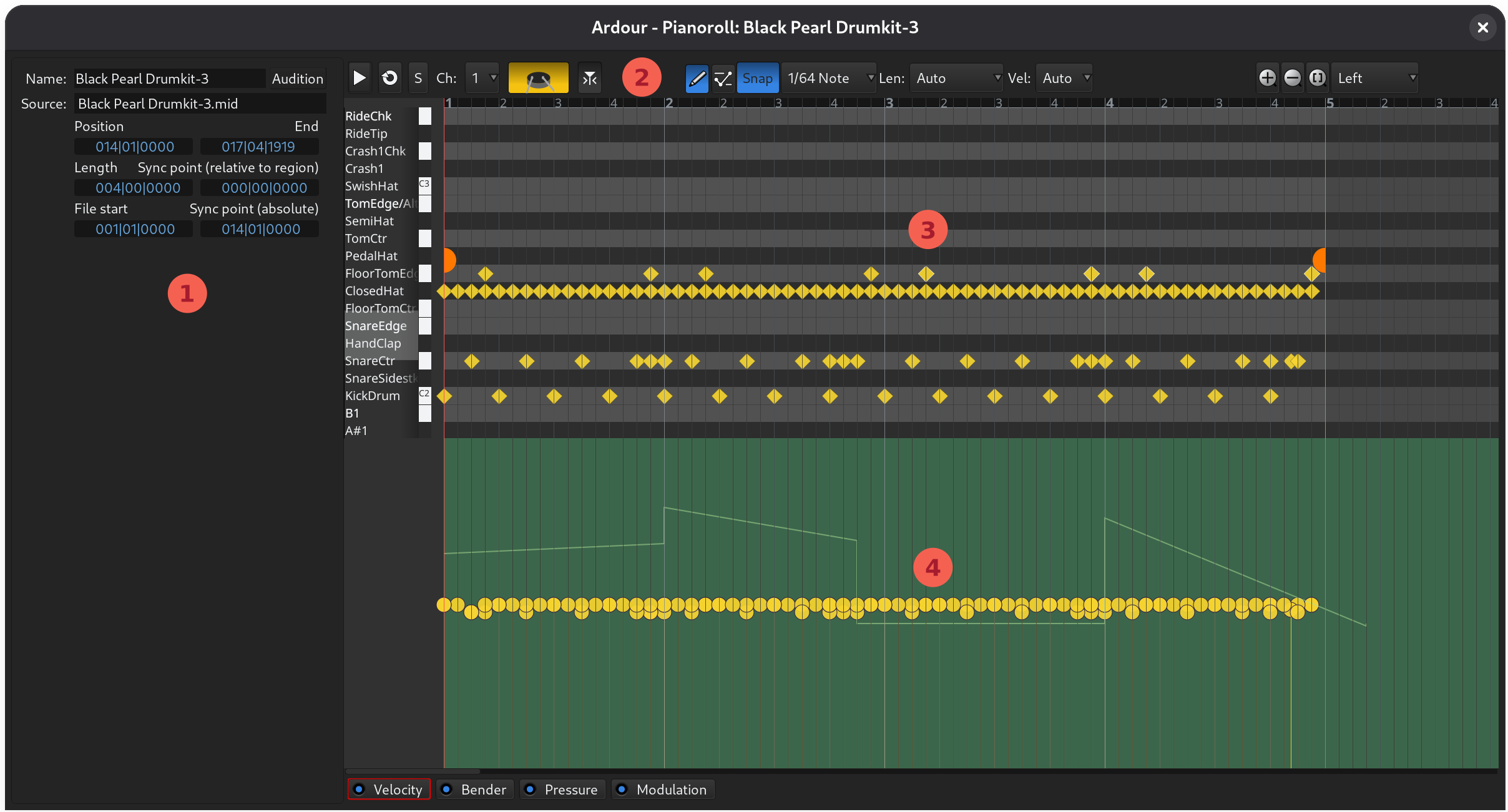
- Region properties pane
- Editor toolbar
- Note editing area
- Automation editing area
Region properties pane
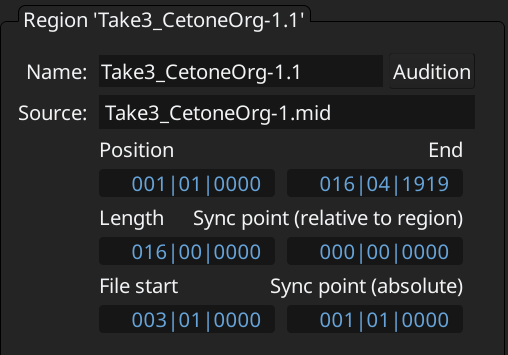
Displays essential information about the MIDI region:
- Name: the name of the region
- Source: the MIDI file where the notes are stored
- Position: where on the timeline the region starts
- End: where on the timeline the region ends
- Length: the duration of the region
- File start: where the visible part of the region begins, counting from the region's start
- Sync point (relative to the region)
- Sync point (absolute)
Editor toolbar
The editor toolbar provides playback, editing, and zoom controls.

Playback controls:
- Play once starting at the beginning of the region
- Loop-playback the region until stopped
- Solo toggle for the track where the region is located
Note display controls:
- Select visible MIDI channel: notes on this channel will be editable, notes on other channels will be displayed as ghost notes that cannot be edited
- Note mode selector: whether to display notes in regular or drum (diamond-shaped) mode
- Follow playhead: whether the pianoroll window should automatically scroll horizontally to follow the playhead
Note editing controls:
- Draw vs Edit mode selection
- Snapping toggle: enables or disables snapping to selected grid units
- Grid mode: allows selecting a specific grid unit or no grid at all
- Length: default note length for notes created by single-clicking on the timeline
- Velocity: default note velocity. The 'Auto' option inherits the velocity from the nearest note
Zoom controls:
- Zoom in
- Zoom out
- Zoom to show the entire region
- Zoom focus mode
Note area
This areas displays all editable notes and provides control for panning between staves and tweaking the beginning and the end of the region.
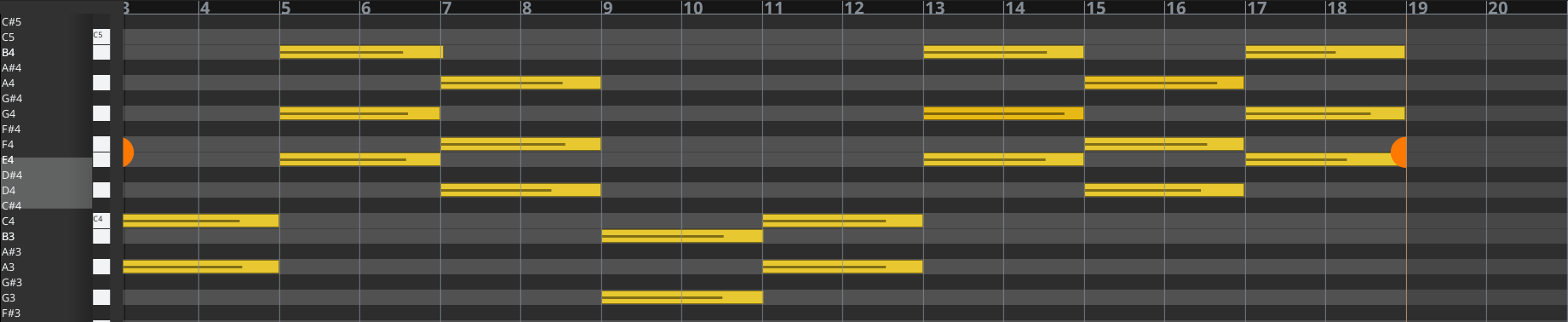
The area on the left controls the visible note range. See here for the detailed explanation how to use the widget.
The orange handles on the left and on the right control the start and the end of the region's visible part. For example, dragging the orange start marker (on the left) to the right is equivalent to using the Grab tool to pick the left side of the region and trim the beginning of the region.
Drawing and editing MIDI notes works the same way as in the main window:
- Select the Draw mode and then click and drag to add a note. Alternatively, press and hold Shift and click and drag to brush notes at the interval defined by global quantization.
- Select the Edit mode, click on a note or rubberband-select multiple note, then click and drag notes by their middle to move them, or click and drag on the left or the right side of one note to trim or extend.
Automation area
This area displays note velocity and controllers and is disabled by default. Clicking on any of the available controller options (Velocity, Bender, Pressure, Modulation) enables it.

To enable or disable an automation lane, click on the small LED indicator to the left of its name on the bottom toolbar.
The area can display data from multiple controllers, overlaid on top of each other, but only one automation lane is editable at the time.
To select the automation lane to edit, click on the controller name. The lane data will become editable, and the relevant button will get a red outline (Velocity on the screenshot above).