
Saving and Importing Mixer Strips
Reusing Mixer Strips
It's possible to reuse mixer strips in other sessions. This involves importing:
- trim gain;
- all plugin parameters;
- pin connections;
- fader position and value.
Other settings of the affected internal tracks/busses are retained.
The three available options for loading processing from mixer strips are:
- Local strip templates: these templates are saved into the current session's folder.
- Global strip templates: these templates are saved into the user's local folder with Ardour settings.
- Ardour sessions: processing is extracted from arbitrary Ardour sessions on the disk and applied to existing tracks/busses or imported as new tracks/busses.
Saving Mixer Strips
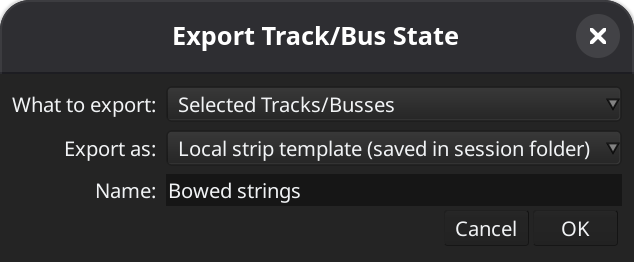
To save mixer strips for further reuse, select track and busses whose processing you want to save, then choose Session > Save Mixer Strips…. In the newly opened dialog:
- Select whether you want to export mixer strips from the entire session or just the selected tracks/busses.
- Select whether you want to export a local or a global strip template.
- Provide the name for the template.
- Click OK.
Importing Mixer Strips
To load mixer strips, select Session > Import Mixer Strips…, then pick an arbitrary session from disk, one of the recently opened sessions, or eother global or local strip template.
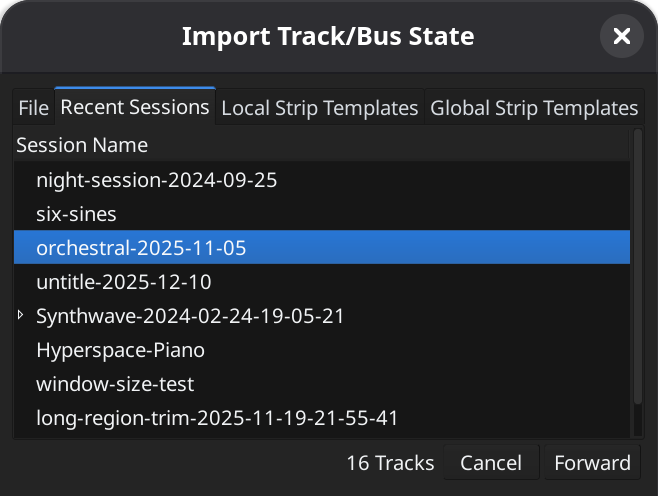
Once you select the source of mixer strips, Ardour will display the number of tracks in either the session or the strip template. Click Forward to continue.
At the next step, Ardour allows you to map internal strips (already available in the session) and external strips (from the selected Ardour session or strip template).

The Local track/bus columns is a list of tracks and busses in the currently opened session. Ardour defaults to displaying pairs of internal tracks/busses and externals states with matching names. Other tracks can be selected from the drop-down list below. Selecting "-- New Track --" will create a new track with a mixer strip selected on the right.
The External State column is a list of mixer strips available in either selected Ardour session or local/global template.
For a new pair of internal track/bus and external state, click the + button to add the mapping to the list.
The Actions drop-down list contains three shortcuts:
- Clear Mapping removes all mappings between internal tracks/busses and external states.
- Import all as new tracks removes all mappings and creates new ones where all external tracks and busses are imported as new tracks.
- Import visible as new tracks removes all mappings and creates new ones where only visible external tracks and busses are imported as new tracks.
- Reset restores default mappings (tracks and busses with matching names).
The Show all local tracks toggle enabled displaying all available tracks and busses in the currently opened session rather than the the first three ones by default.
Click OK to complete importing mixer strips to the current session.
Managing Mixer Strip Templates
Global mixer strip templates are available for managing in the Template Manager.