
Adding and Editing Chords
The Chord Editing part of the pianoroll sidebar helps insert new chords to MIDI regions and edit existing chords.
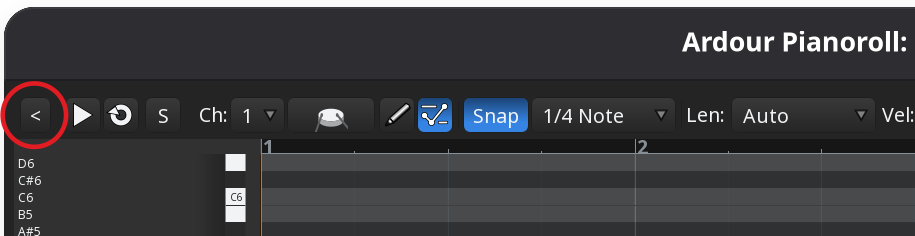
The pianoroll sidebar is hidden by default for both pianoroll windows and the bottom region editor. To enable it, click on this button in the toolbar:
The controls in Chord Editing are separated into the following groups:
| Group | Can create new chords | Can edit existing chords |
|---|---|---|
| 3-Note Chords (Triads) | Yes | Yes |
| 4-Note Chords (Tetrads) | Yes | Yes |
| Extended Chords | Yes | Yes |
| Inversions | No | Yes |
| Drop Notes | No | Yes |
Adding chords
To add a new 3-note, 4-note, or an extended chord, follow these steps:
- For an already opened MIDI region, switch to the Draw mode.
- Click on the pencil button next to the chord you want to add.
- Draw the root note in the region.
The rest of the chord's note will be added as soon as you stop drawing the root note.
Editing chords
Ardour provides three ways to manipulate the existing chords in MIDI regions: changing them to other chords (swapping), inverting them, and dropping notes.
Swapping chords
To change an existing chord to a different one, follow these steps:
- Select all the chord notes. Ardour will attempt to identify the chord and display it at the top of the Chord Editing section.
- Find the chord you want to change it to and click on the respective button.
Note that you can freely switch between 3-note, 4-note, and extended chords, e.g., go from a 3-note chord to a 5-note chord and vice versa.
Inverting chords
You can invert chords by either moving the lowest pitch up by 1 octave
(
To invert a chord, follow these steps:
- Select all the chord notes.
- Click on one of the two buttons:
Move Up orMove Down .
Dropping notes
You can transform tight, closely-spaced chords into wider, more open ones. Ardour provides three options to do that:
- Drop 2: moves the second lowest pitch by 1 octave
- Drop 3: moves the thiord lowest pitch by 1 octave
- Drop 2+4: moves the second and the fourth pitches by 1 octave
To drop notes, follow these steps:
- Select all the chord notes.
- Click on one of the two buttons:
Drop 2 ,Drop 3 , orDrop 2+4 .
Creating arpeggios
To create an arpeggio rather than a chord, follow these steps:
- For an already opened MIDI region, switch to the Draw mode.
- Click on the pencil button next to the chord you want to add.
- Enable the
Arpeggiate checkbox at the bottom of theChord Editing section. - Draw the root note in the region.
The other notes will be added automatically, with the same length as the root note.